Zoom - Installing Zoom Application (iOS)
Issue:
I need to install the Zoom application on an iOS device.
Solution:
Tap on the Apple App Store icon on your iOS device to open.

Tap on Search at the bottom right of your screen.
Enter Zoom in the search text box.
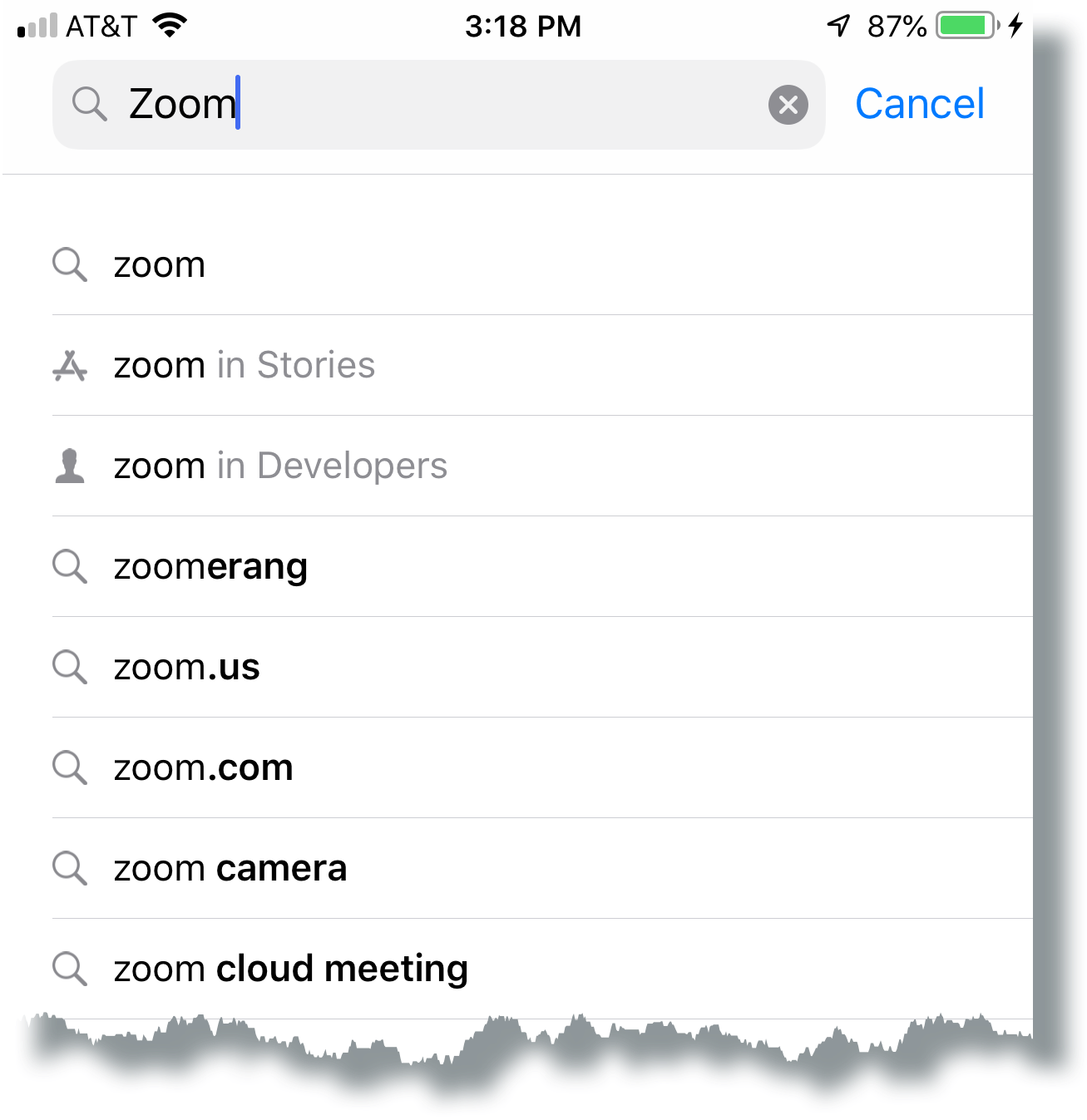
Select ZOOM Cloud Meetings from the available app choices, and then tap on the GET button.

The installation process will start.

Tap Open.

In the Zoom app, tap Sign In.

In the Sign In window, tap SSO.

Enter wsu in the text box to complete the domain name, then tap Go.
On the WSU sign-in page enter your NID and password, then tap Sign In.
Tap Open.
In the next window, tap Allow.
In the next window, tap OK.
The Zoom main window will be displayed.
A Zoom app icon should also appear on your Home screen.
Need Help? You can submit a ticket from our Jira service desk: WSU Zoom Service Desk